
Spark Stored Procedures in BigQuery: A step-by-step guide (Part 1)
Serverless Spark in a data warehouse is a long awaited feature in Google Cloud. This post is a practical guide on creating and running Spark procedures in BigQuery using GCP console UI.

Overview
After reading this article, you will learn essential theory about serverless Spark stored procedures in BigQuery, explore real-world use cases, and follow a practical step-by-step guide to setting up Spark stored procedures in BigQuery that actually works. At the end, you’ll get a glimpse into how BigQuery Spark procedures can fit into your production workflow and find useful links for further reading.
Introduction
Why I Wrote This Guide
The answer to this question is straightforward. Existing guides, articles, and even the official documentation did not fully cover everything needed to successfully set up Spark stored procedures in BigQuery.
For example, the official documentation does not mention anywhere on the page bigquery.readsessions.create permission, which is part of the BigQuery Read Session User role. However, without this role, it is impossible to read from a sizeable BigQuery table, which is arguably the most common operation a Spark procedure would perform in BigQuery.
So with that, I have decided to make an attempt to write a step-by-step guide on how to create and run Spark stored procedures in BigQuery that actually works.
So get yourself a nice drink ☕️ and let’s dive into it!
Let’s Get the Terminology Straight
Apache Spark is an open-source data processing engine designed to process vast amounts of data in parallel. Spark jobs are executed using a compute cluster under the hood. In Spark’s early days, folks had to manage the cluster themselves, which added significant overhead. Nowadays, we’re fortunate enough to have many serverless solutions that handle cluster management for us. While this convenience comes at an extra cost, it saves on engineers’ time, which seems like a fair trade-off to me. Within Google Cloud Platform, we can run Spark jobs using the Dataproc service or as a BigQuery stored procedure. In this article, we’ll focus on the latter option.
A stored procedure is a special function, procedure, or script that can be called to perform operations within a database. This concept is not unique to BigQuery - almost all modern databases support it in one form or another. With stored procedures, we can query or modify existing tables, delete rows, or even create new tables, views, etc. The code inside a stored procedure is typically written in SQL, but many services also support other languages. For example, BigQuery supports Apache Spark stored procedures, which we will cover in this guide. Spark itself offers APIs in multiple languages, but BigQuery supports Spark stored procedures written in Python (PySpark), Scala, or Java. In this guide, we will be using PySpark.
Reasons to consider Spark stored procedures in BigQuery
You need to deal with complex transformations that cannot be implemented with Google SQL.
Procedure code written in SQL is very hard to maintain due to its complexity, which can be simplified with Spark.
You are performing data transformations in BigQuery and exporting the results elsewhere, e.g., to Google Cloud Storage.
I wouldn’t recommend using Spark when it’s possible to achieve the same result with a relatively straightforward standard SQL-based stored procedure.
Real-World Use Case
Recently, I have worked on a task that serves as a perfect real-world use case for Spark-based stored procedures in BigQuery. Here’s a brief overview:
We had a SQL stored procedure that detected changes in a historicized table of user data between the current state and yesterday’s version and exported the resulting changeset to Google Cloud Storage. The JSON file with the changes included the old value, current value, and data type for each column in the users table.
While the procedure was well-written, it was very hard to read and understand due to the complexity of the SQL-based script. It involved loops, querying INFORMATION_SCHEMA, and pivoting. By solving this problem with PySpark, we made the procedure more configurable, possible to cover with automated tests, significantly reduced its complexity, ultimately making the code easier to maintain in the future.
Creating a Stored Procedure in BigQuery UI
Prerequisites
To follow this guide, you will need the following:
A GCP account.
A user account with the following roles assigned:
Project IAM Admin — Grants full control over IAM policies at the project level, it is needed to assign roles below.
Service Account Admin — Required to create a service account and assign it to the stored procedure.
BigQuery Connection Admin — Allows creating and managing BigQuery external connections, including the Spark connection needed in this guide.
BigQuery Data Editor — Enables reading from and writing to BigQuery tables.
BigQuery Job User — Provides permissions to run jobs in BigQuery.
BigQuery Metadata Viewer — Required to view and access the stored procedure within a dataset.
BigQuery Connection User (Optional)
The BigQuery Connection User role is required if your GCP admin creates the connection for you; thus, you do not have the BigQuery Connection Admin role. In that case, your user must have this role assigned.
If you encounter an error like the one below, it likely indicates that the Connection User role needs to be assigned to the caller of the procedure:
User does not have bigquery.connections.delegate permission for connection {your spark connection name}.If you are an admin in your GCP project or are working within a project that you own, you most likely already have all the permissions provided by these roles. In that case, you’re good to go!
Setting Up the Essentials
Before creating your first BigQuery Spark stored procedure, you’ll need to complete 3 steps.
Step 1: Enable BigQuery Connection API
First of all, enable the BigQuery Connection API or confirm that it is already enabled. You can do this by following this link.
Step 2: Configure a Service Account for the Stored Procedure
For accessing resources, a Spark stored procedure can either:
Use a custom service account created specifically for this procedure (which is what we’re about to do now).
Operate under the Spark connection’s service identity, which is a service account automatically created and managed by Google when the Spark connection is set up (more on that later).
We will use this custom service account to grant the stored procedure access for performing CRUD operations on BigQuery tables and writing data to Google Cloud Storage.
To create a service account in GCP:
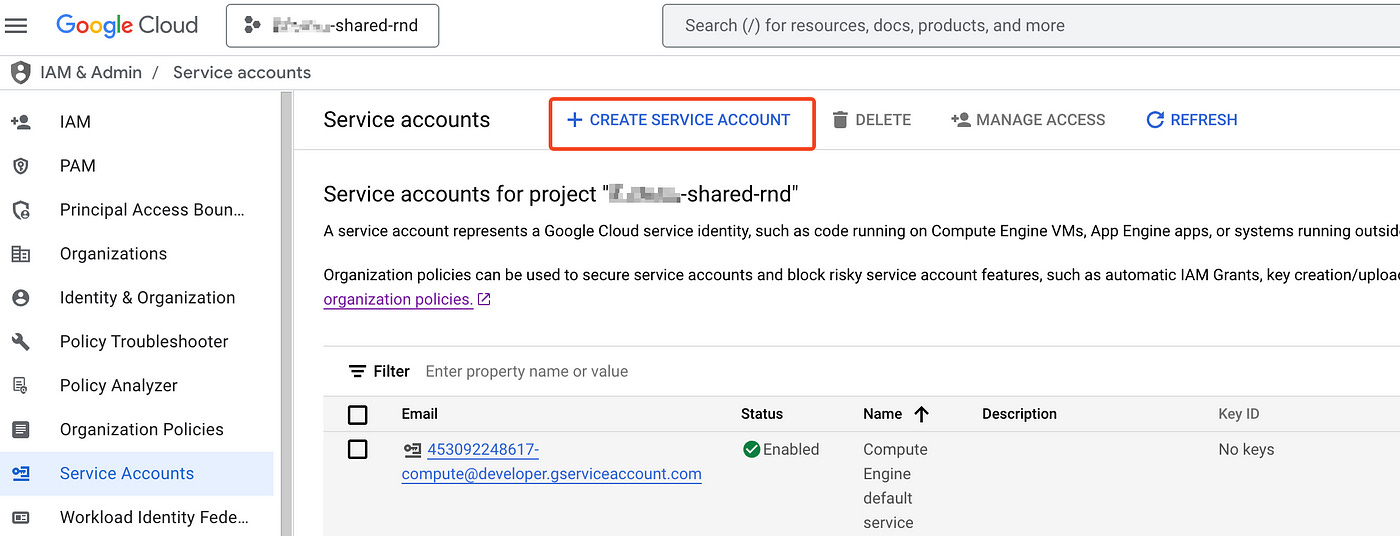
Navigate to IAM & Admin → Service Accounts or follow this link and select your project.
Click ”Create service account” to begin the setup.
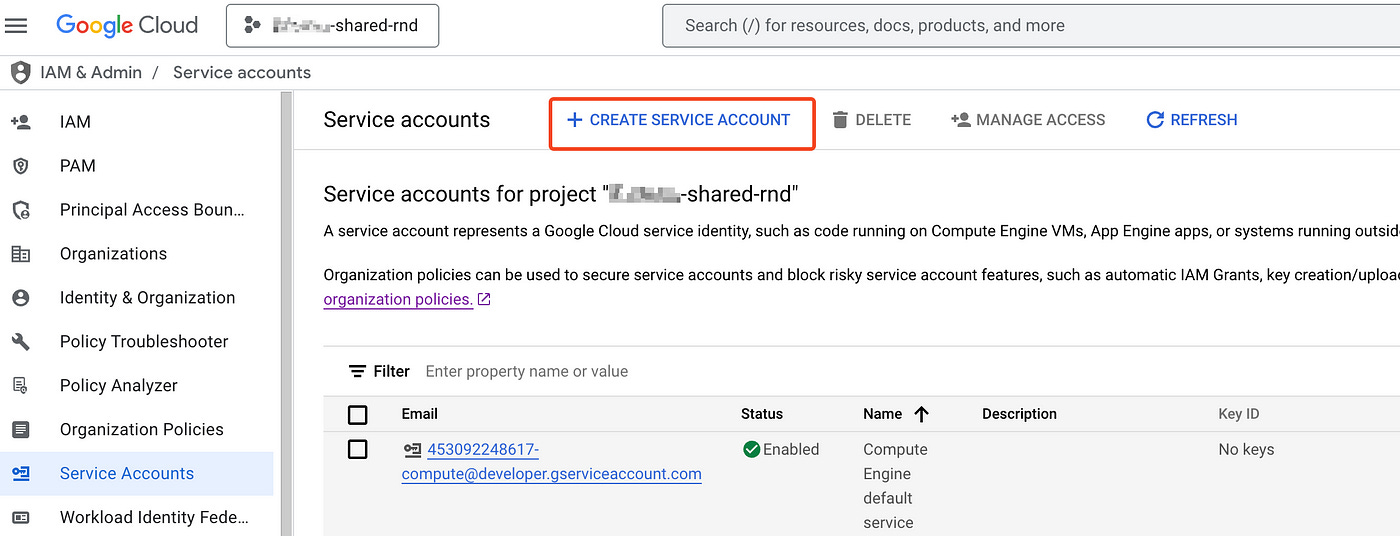
Service Accounts page in GCP
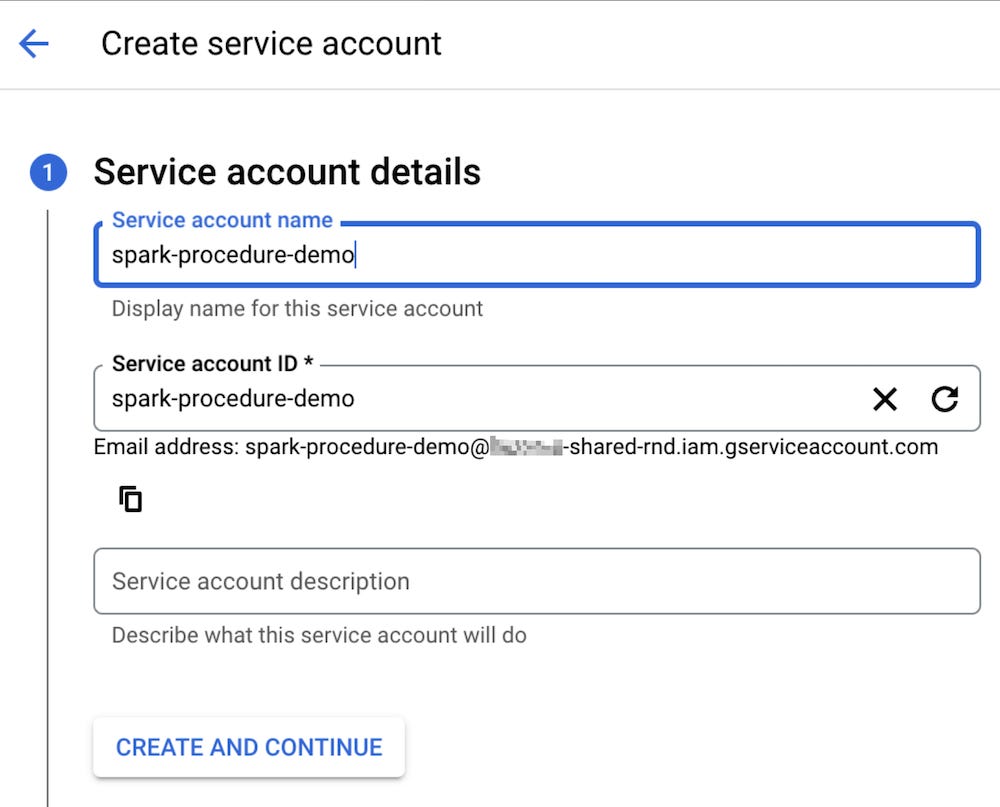
3. Fill in the Service Account Name field. In this guide, I will name mine spark-procedure-demo. Once you’ve entered the name, click ”Create and continue”.
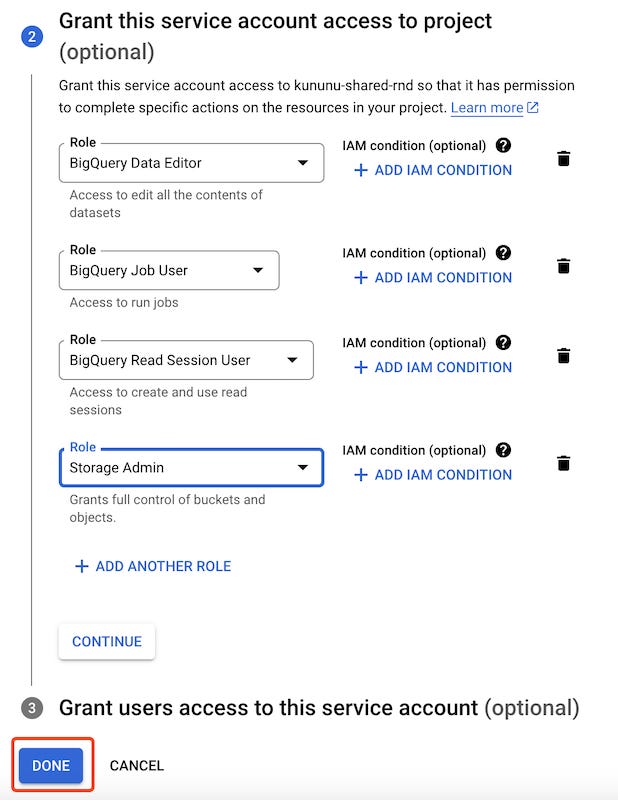
4. Next, grant this service account access to the project by assigning the following roles:
BigQuery Data Editor: Allows performing CRUD operations on BigQuery resources.
BigQuery Job User: Provides permissions to run jobs.
BigQuery Read Session User: Enables the creation and use of read sessions.
Storage Admin: Grants full control of objects and buckets in GCS. The stored procedure will create a bucket to store logs. Also, we will write the procedure output to the storage bucket.
Once all roles are added, click “Done”.
Step 3: Create a GCS bucket
This step is not always required, but for this guide, our stored procedure will write output to Google Cloud Storage (GCS). Therefore, it’s better to have a designated bucket. To create a bucket:
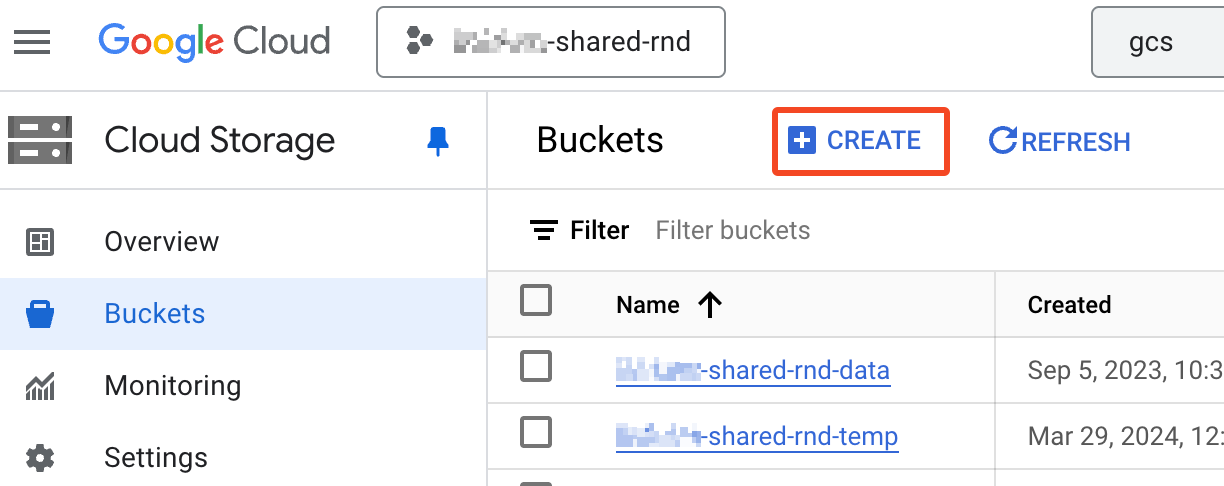
Navigate to Cloud Storage and click “Create”.
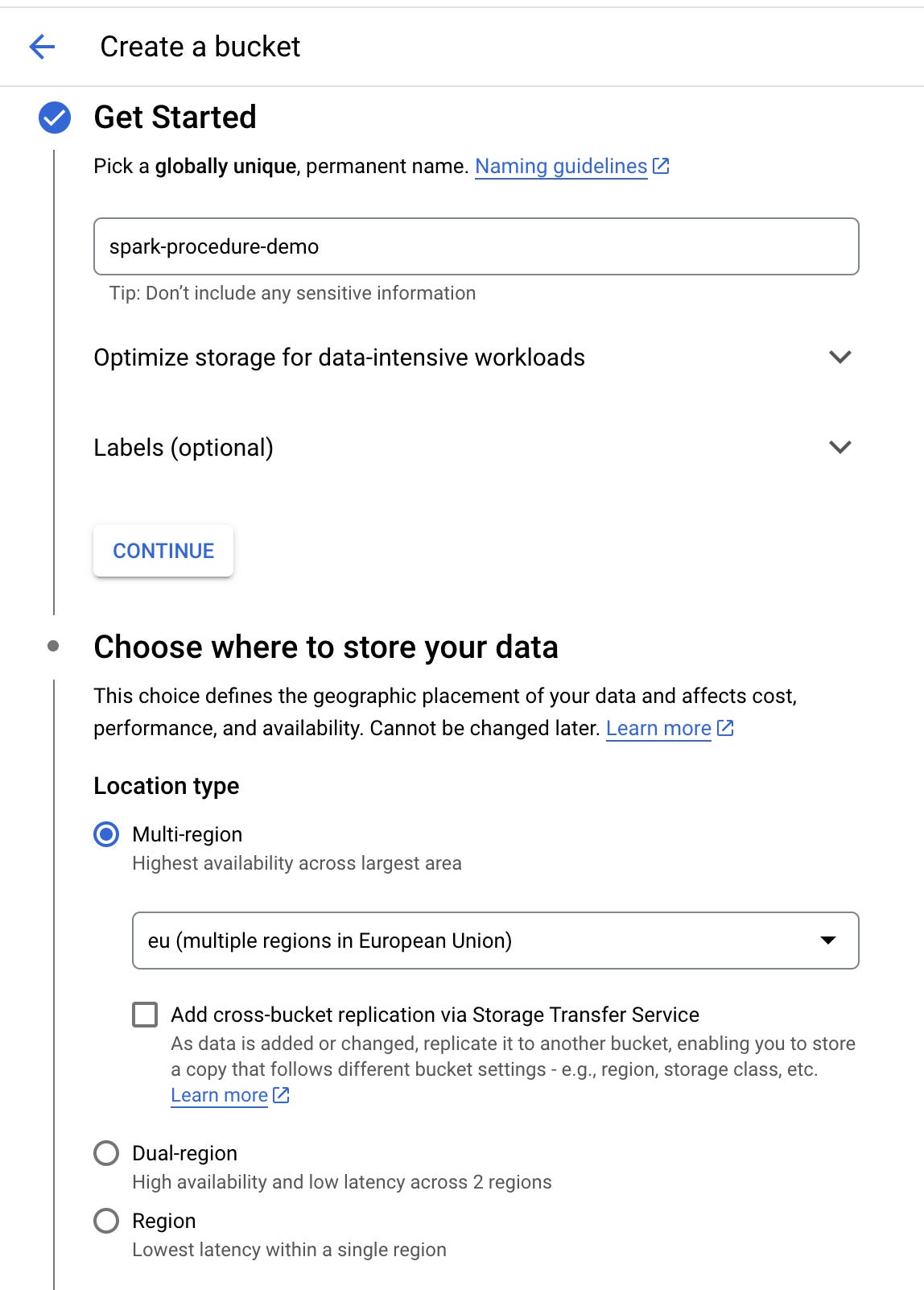
2. Input a bucket name. For this guide, I will name the bucket spark-procedure-demo. Keep in mind that the bucket name must be globally unique.
3. Choose where to store your data. For “Location type”, select “Multi-region” in US or EU. In this demo, I will choose the EU Multi-region. Later, we’ll use this location for the stored procedure as well.
4. Leave all other fields as their defaults and click “Create”.
5. When the “Public access will be prevented” popup appears, leave access prevented and click “Confirm”.
Configuring a PySpark Stored Procedure in the BigQuery UI
Step 1
To get started, open BigQuery. In BigQuery Studio, click on ”PySpark Procedure” as shown in the figure below.
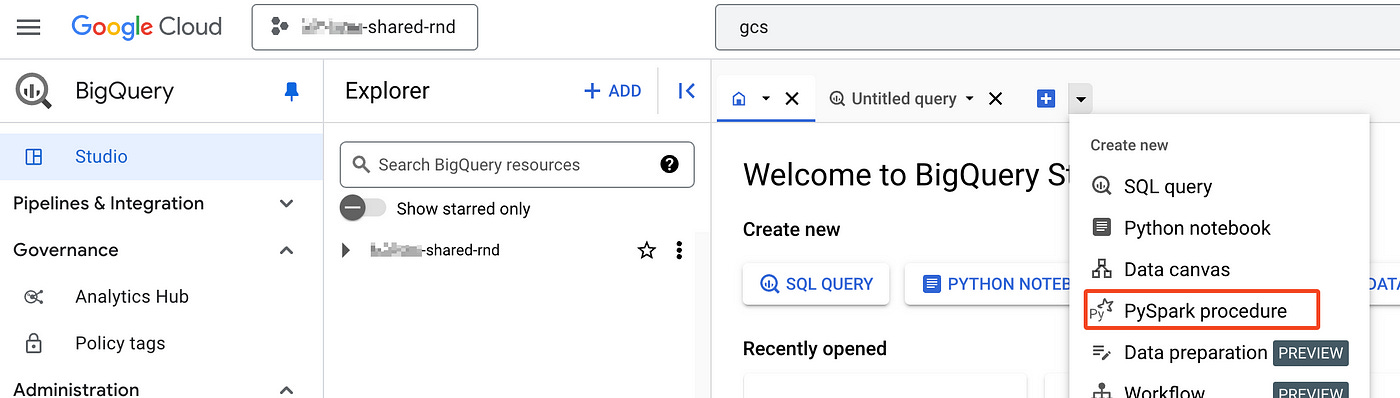
This will open an inline editor for the procedure.
Step 2
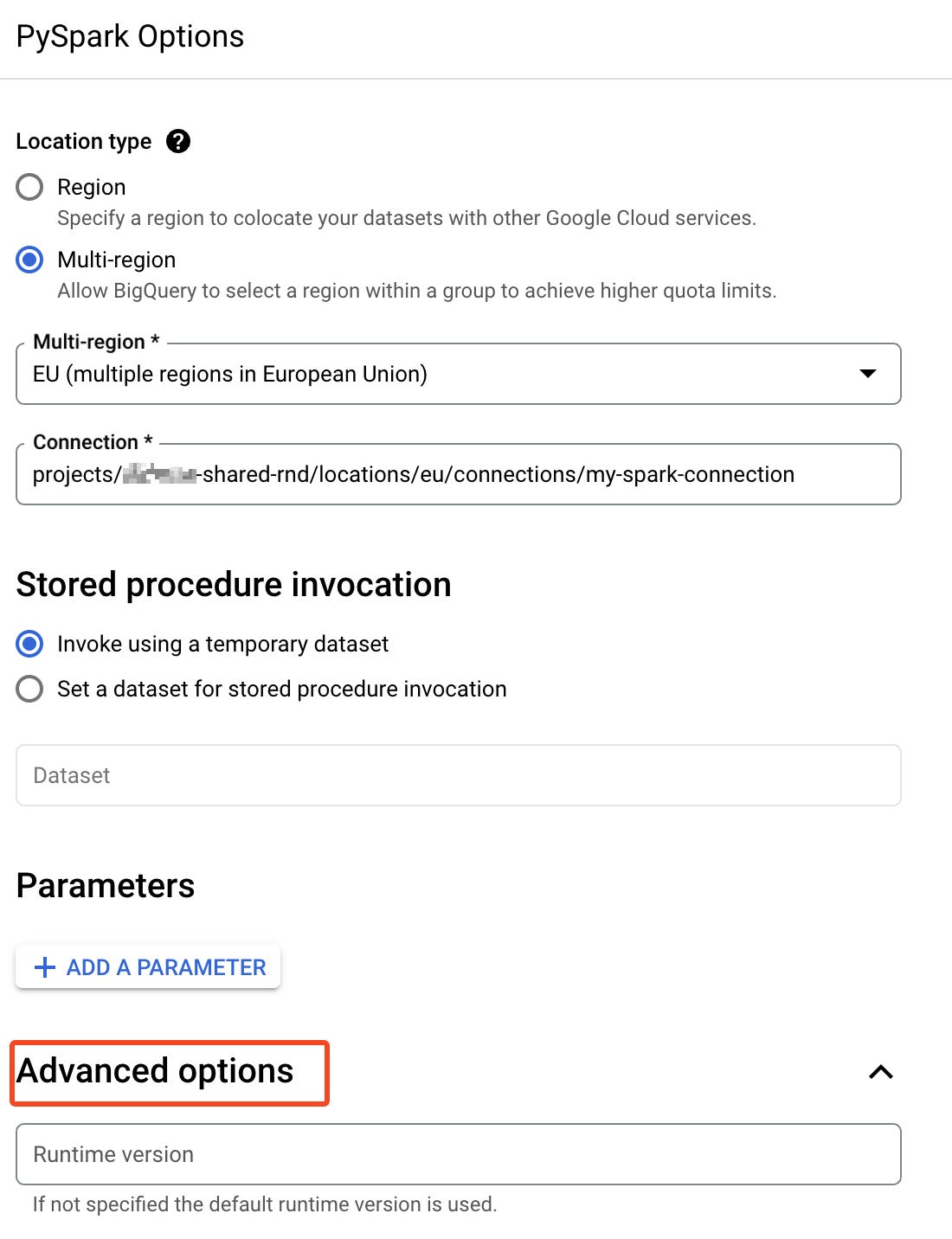
Now, we need to configure it. Click on MORE → PySpark options.
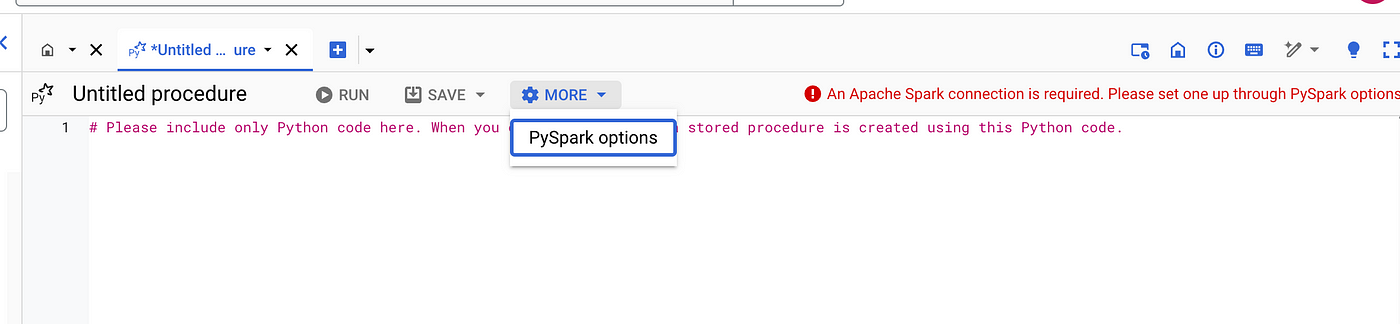
For “Location type”, you can choose between “Region” and “Multi-region”. The location determines where the query will run. You should select the location where your data is stored.
In this guide, I will choose “Multi-region” and “EU”.
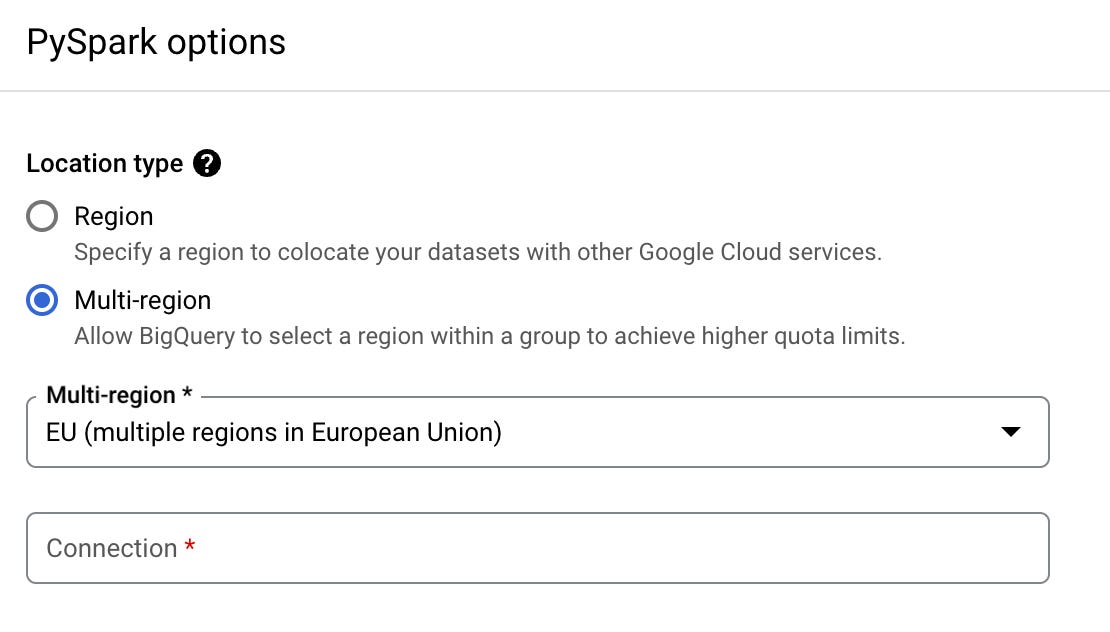
Now, we need to create or select a Spark connection for BigQuery. To do this, click on the “Connection” input. It will load existing connections.
At this point, you likely don’t have any existing connections, so click “Create new connection”.
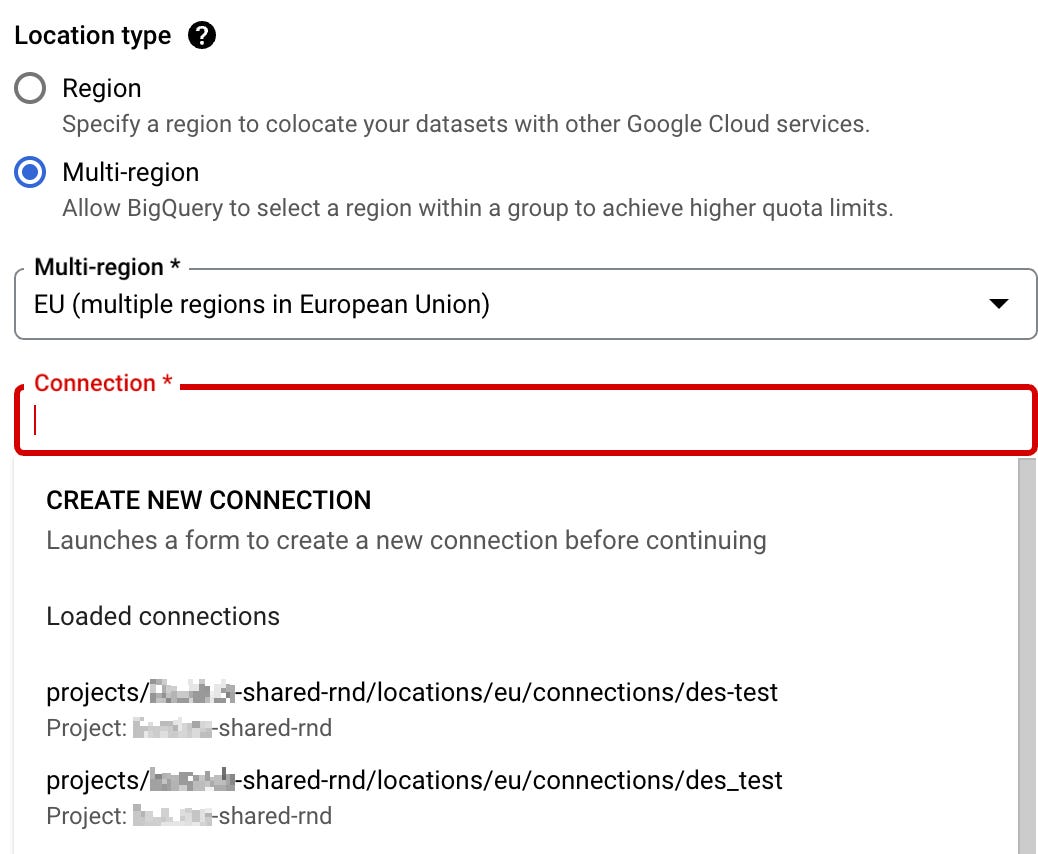
This will open a sidebar for creating an external data source connection. Here, do the following:
For “Connection type”, choose Apache Spark.
Connection ID is just an identifier for your connection. You can name it whatever you like. In this guide, I will name mine
my-spark-connection.For Location type, select the location you have already chosen before for the procedure. In my case, it is “Multi-region” and “EU”.
All other fields are optional, and you can leave them blank. Feel free to fill in “Friendly name” and “Description” if you prefer.
Once you’re done, click “Create connection”.
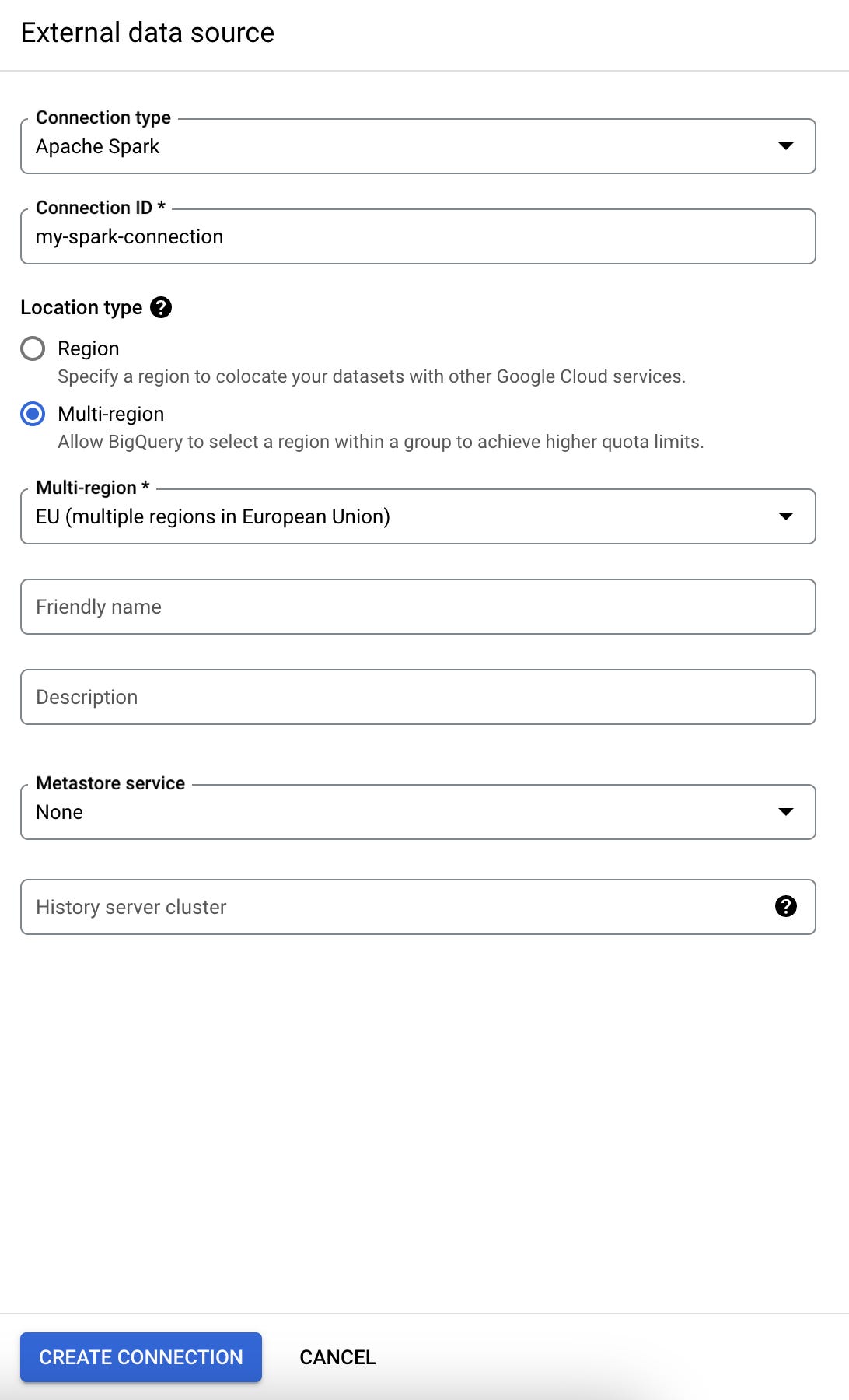
For the curious readers, here’s a brief explanation of “Metastore service” and “History server cluster”:
Metastore service is a fully managed Apache Hive metastore that stores and manages metadata about available data structures (e.g., tables, schemas, etc.). Click here to read more on this.
History Server Cluster refers to the Dataproc Persistent History Server (PHS), which provides a web interface to view the history of Spark job runs.
Although Spark stored procedures in BigQuery rely on a serverless Spark engine that abstracts the management of Dataproc clusters, you still have the option to set up a history server in Dataproc. This allows you to view and potentially debug Spark jobs executed by your stored procedure.
In this guide, I won’t be covering how to set up a history server. However, if you’re interested, you can create one in Dataproc. Once created, you’ll be able to select it when configuring your connection.
Step 3
For “Stored procedure invocation”, I suggest keeping the default option of invoking in a temporary dataset. However, if you prefer, you can choose a specific dataset instead — it won’t cause any issues. Essentially, each time the stored procedure is invoked, an instance of the temporary stored procedure is generated. This option lets you choose where the instance will be generated.
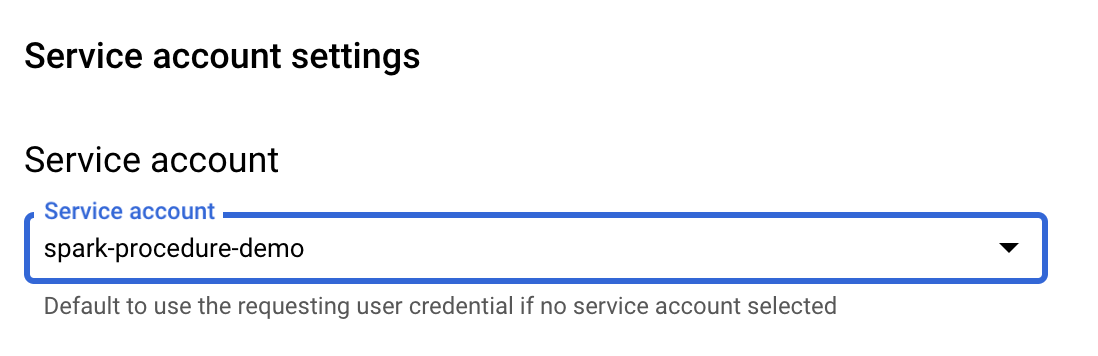
There is one thing left to do — assign the service account that we created before to this stored procedure. To do this:
Click on “Advanced options”.
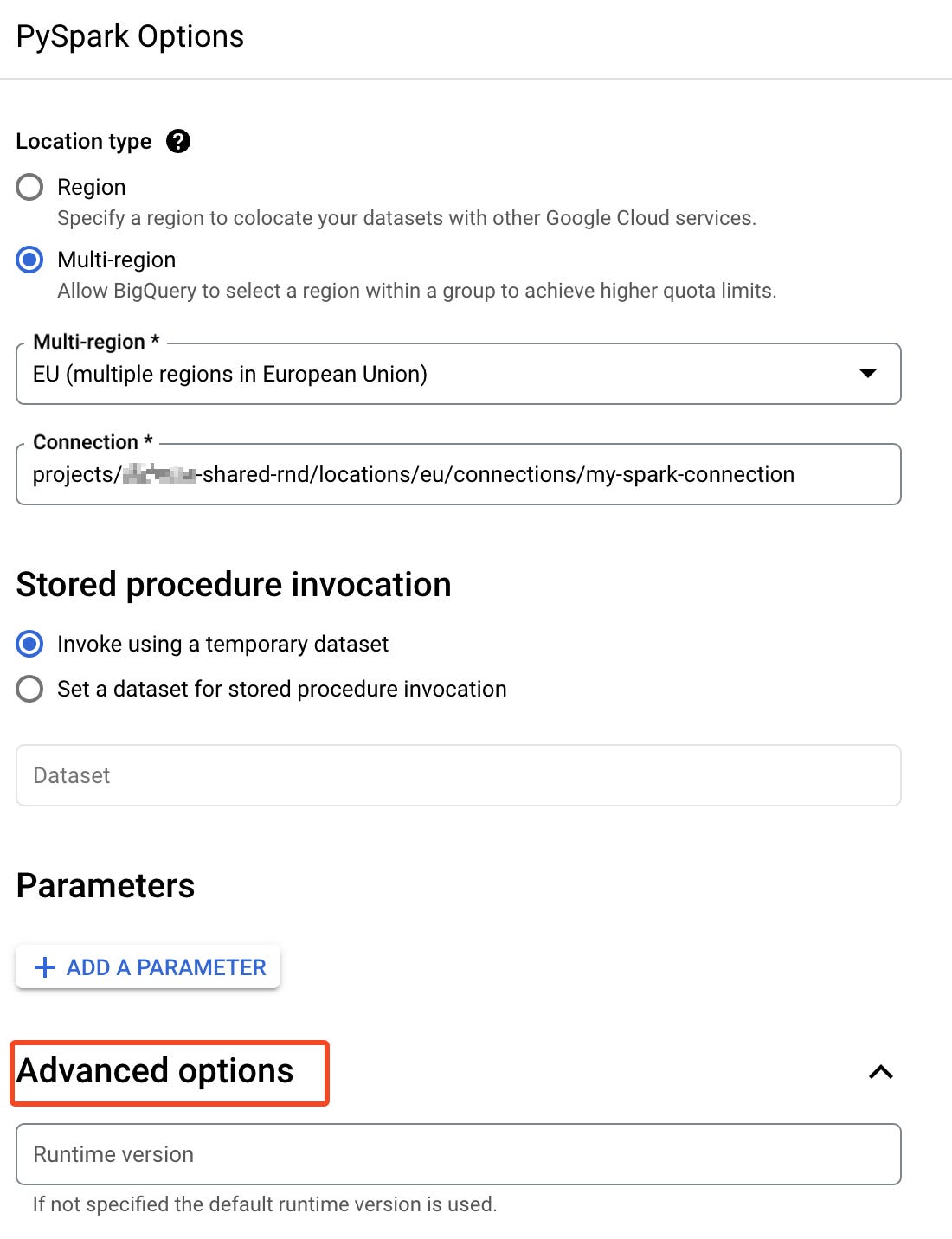
PySpark procedure configuration — Advanced options 2. Scroll down to “Service account settings” and select the service account you created at the beginning of this guide.
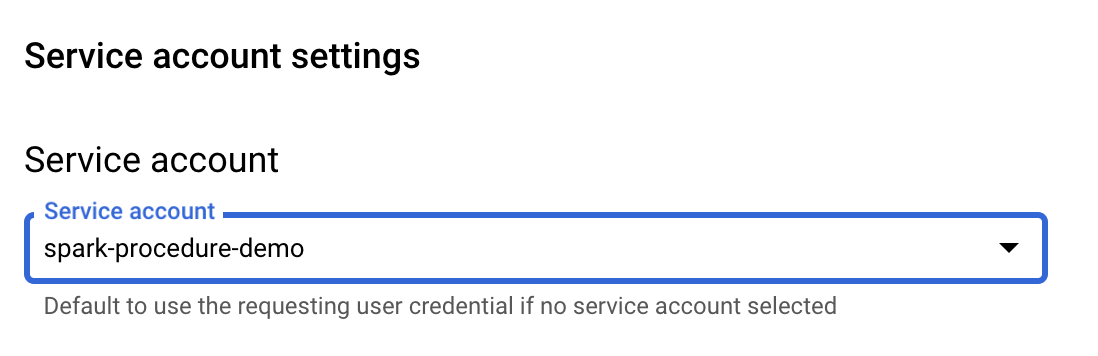
Assigning Service Account to Spark procedure With that, your stored procedure is now configured! Scroll down and click “Save”.
Now, let’s test it and execute some PySpark code!
Executing stored procedure
The stored procedure will demonstrate an integration with BigQuery and Google Cloud Storage by saving the execution results to a BigQuery table and a GCS bucket — the two most common destinations for storing results in real-world scenarios.
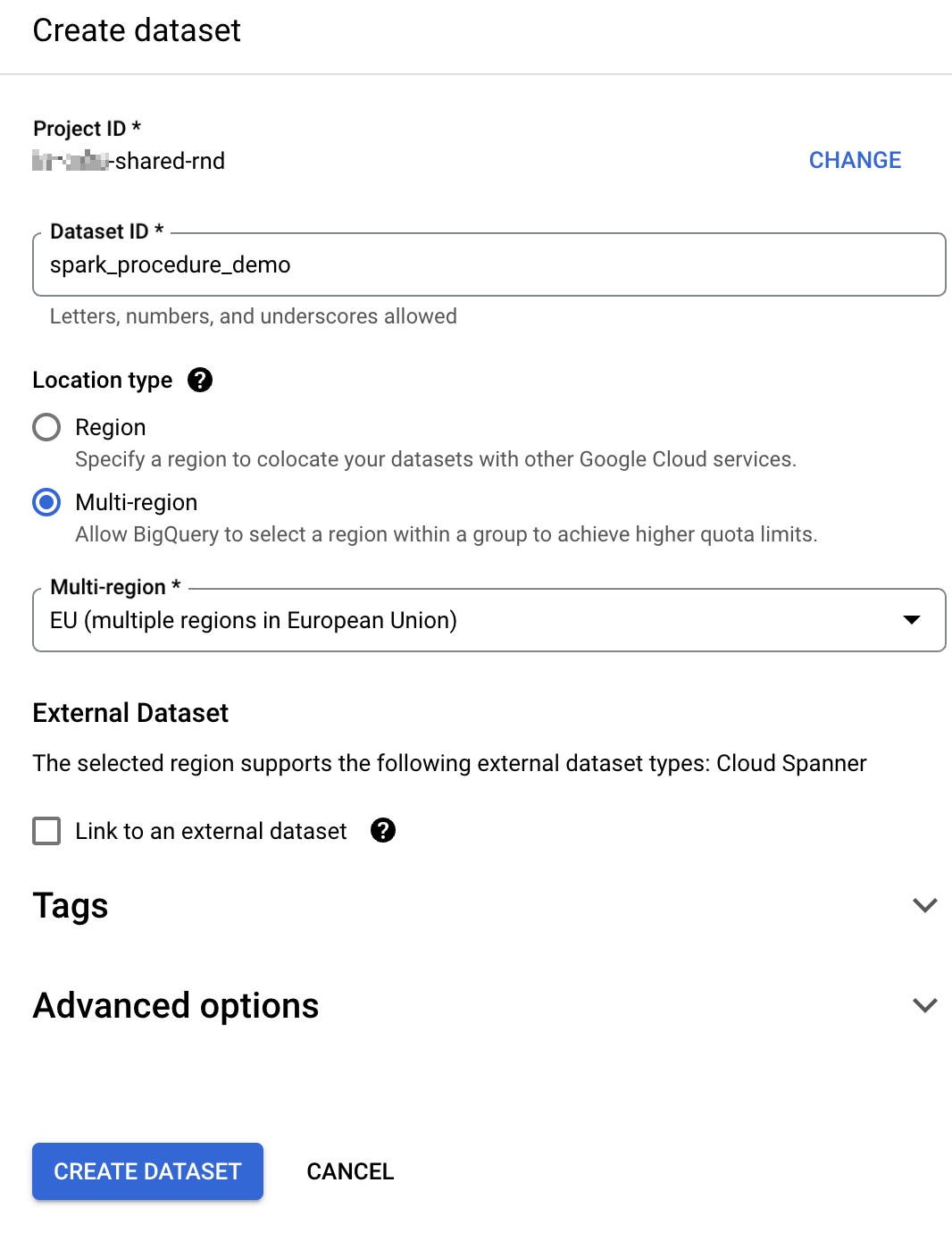
The first step is to create a dataset where we’ll store the results of the stored procedure execution. To do this:
In the BigQuery Explorer, click on the three dots next to your project’s name.
Select “Create dataset” from the dropdown menu.
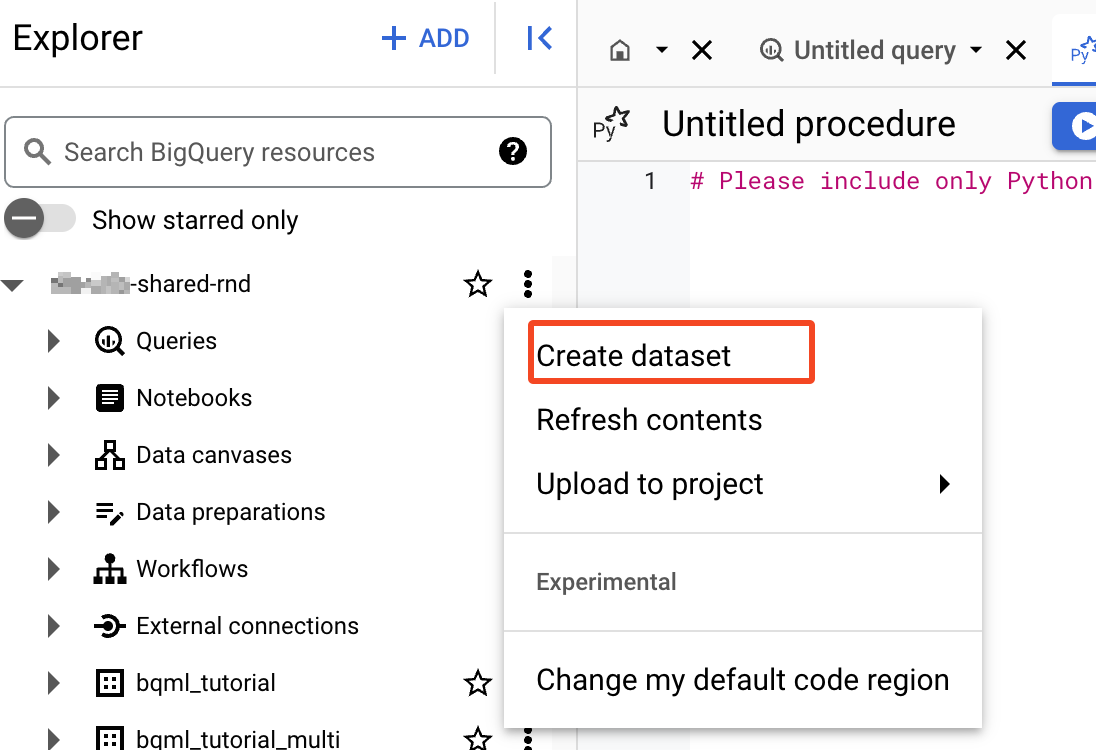
3. Give the dataset a name. In this guide, I will name mine spark_procedure_demo.
4. For “Location type”, select the same option you chose earlier for the bucket, stored procedure, and Spark connection. In my case, that is “Multi-region” and “EU”.
5. Click “Create dataset” to complete the setup.
Paste the code below into the BigQuery editor. Update the dataset and bucket names if needed, then click “Run” to execute it.
from pyspark.sql import SparkSession

spark = SparkSession.builder.appName("spark-bigquery-demo").getOrCreate()

# Load data from BigQuery.
words_df = spark.read.format("bigquery") \
.option("table", "bigquery-public-data:samples.shakespeare") \
.load()

# Perform word count.
word_count = words_df.select('word', 'word_count').groupBy('word').sum('word_count').withColumnRenamed("sum(word_count)", "sum_word_count")
word_count.show()
word_count.printSchema()

# Saving the data to BigQuery. spark_procedure_demo is a dataset name, update it if needed
word_count.write.format("bigquery") \
.option("writeMethod", "direct") \
.save("spark_procedure_demo.wordcount_output", mode="overwrite")
print("Wrote to BigQuery")

# spark-procedure-demo is the name of the GCS bucket, update it if needed
word_count.coalesce(1).write.csv("gs://spark-procedure-demo/wordcount_output.csv", header=True, mode="overwrite")
print("Wrote to gcs")
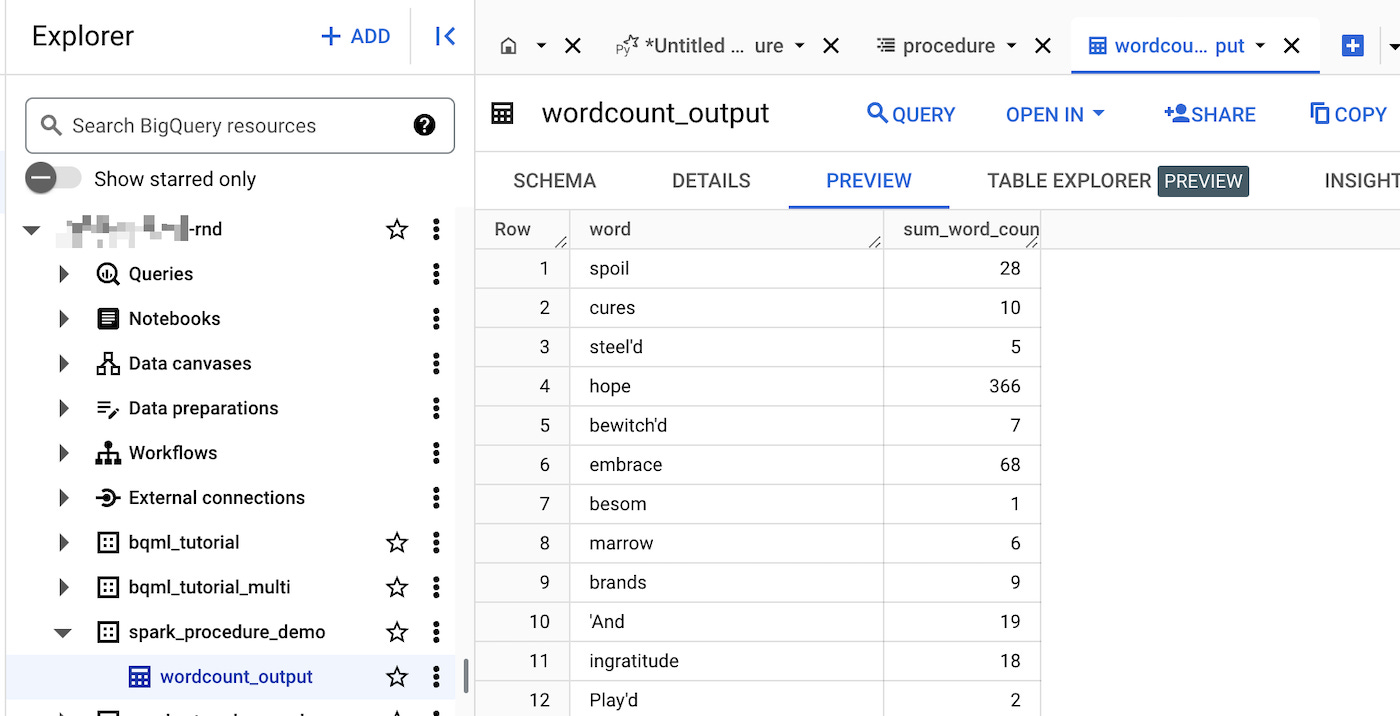
Here, we read public data provided by Google, transform it, and write the result to a BigQuery table and the GCS bucket we created earlier.
If everything is configured correctly, the execution should take a few minutes to run and succeed.
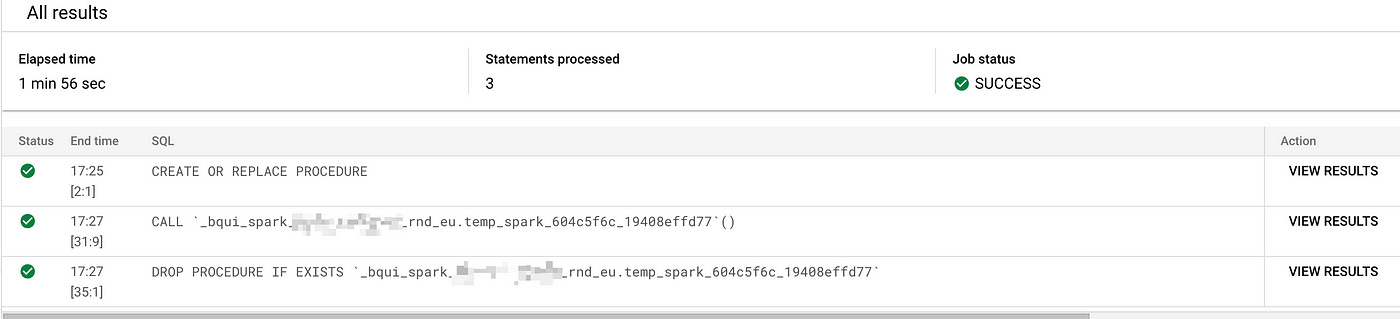
As a result, we have a table in BigQuery and a CSV file in our GCS bucket.
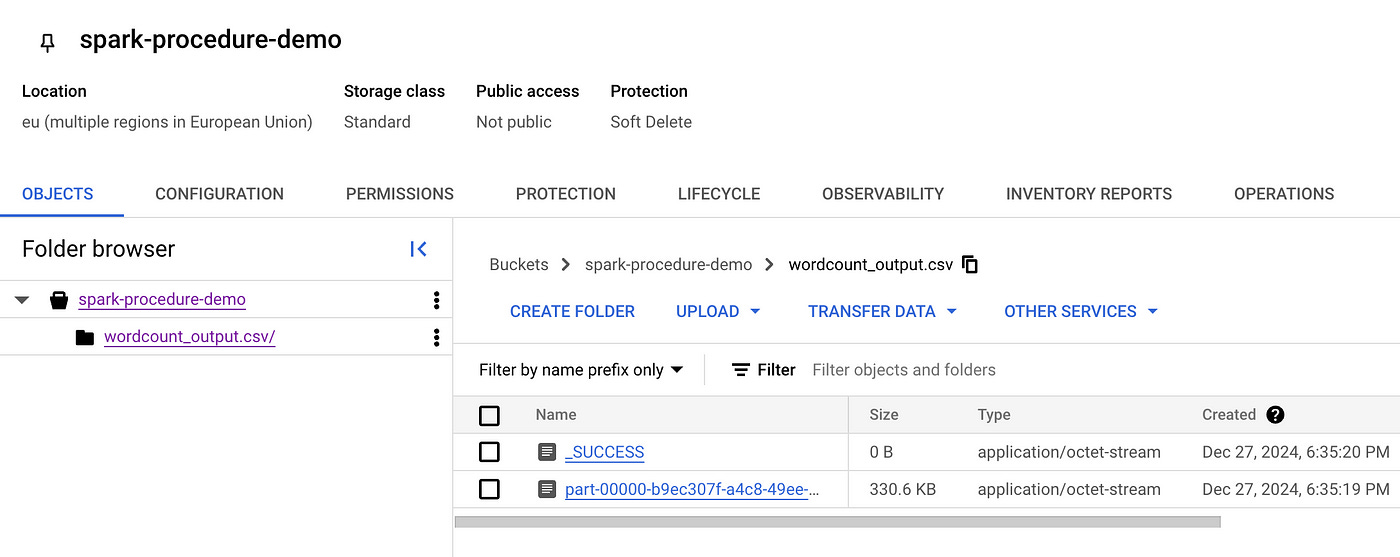
FYI: Spark writes files into partitions. In this example, all output data fits into a single partition. The _SUCCESS file is an empty marker file written by Spark to indicate that the write operation completed successfully.
Side Note: Procedure Service Identity
As I mentioned at the beginning of this article, a Spark stored procedure can operate under a custom service account, as we have done in this guide, or under the Spark connection’s service identity. Let’s explore what that means.
If you go to BigQuery → External connections → my-spark-connection, you’ll see that GCP has automatically created a service account for this connection.
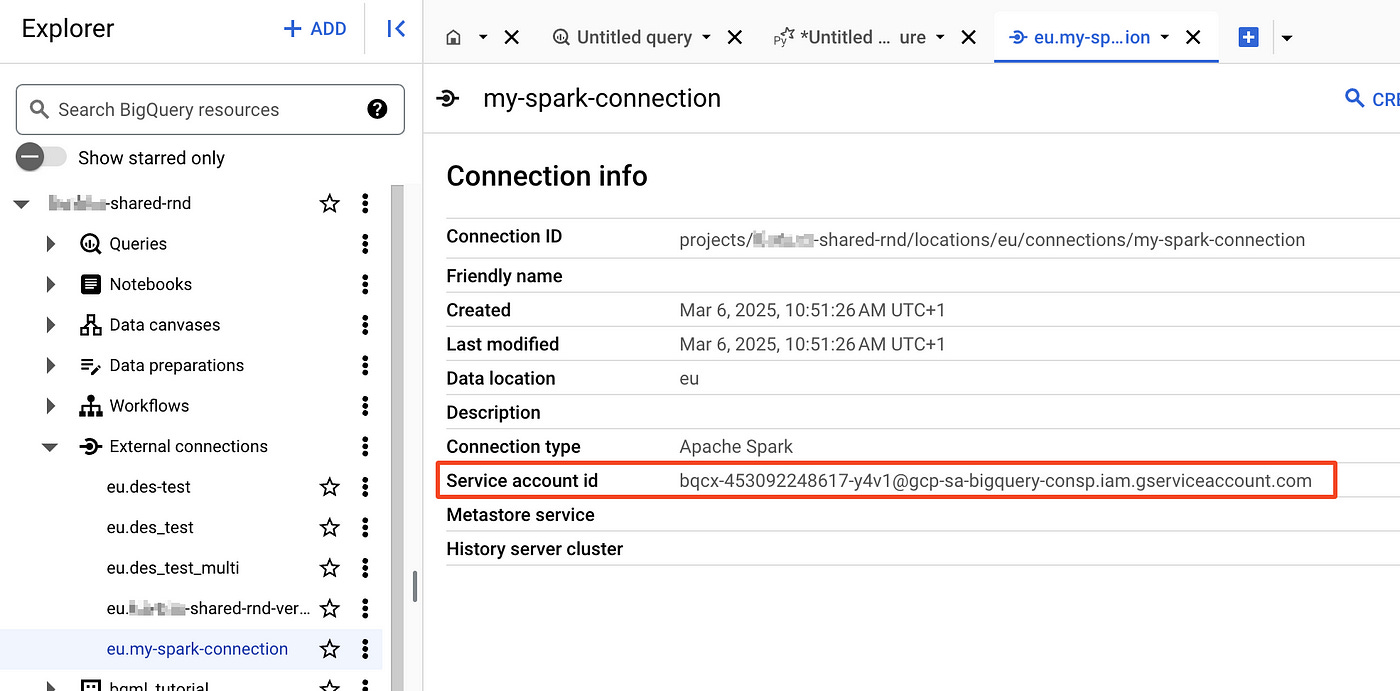
So, if you don’t specify a custom service account for your Spark procedure, it will use the service account associated with the Spark BigQuery connection. With this setup, you can grant the necessary roles to this service account. If you have multiple stored procedures, they can all share the same Spark connection and its service account, allowing them to access the same resources.
It’s not the perfect approach in terms of separation of concerns, but it’s possible — and honestly, quite convenient.
I hope everything worked smoothly for you, which means we’re done! Great job following this guide! Now, let’s draw a conclusion and discuss the next steps!
Conclusion
Spark stored procedures in BigQuery are a relatively new but highly anticipated feature. They arrived quite late to the game, launching only in March 2024. For comparison, Snowpark — a Snowflake’s solution for running Spark-like workloads — was released back in June 2021. But hey, better late than never, right?
With Spark stored procedures, we can run complex data transformation jobs using Python, Scala, or Java, all within BigQuery’s ecosystem — eliminating the need to manage Spark clusters manually. However, the feature still feels somewhat raw. There aren’t many articles or guides available yet, and unexpected permission issues often arise during the initial setup. That’s exactly why I wrote this guide — to provide a step-by-step approach that actually works.
I hope this guide was helpful to you! This is my first article, so any constructive feedback is very much welcome.
Good luck with Spark procedures in BigQuery, and happy coding! 🚀
Beyond This Guide
Further Reading
We created a Spark stored procedure in BigQuery using the GCP console. This approach works perfectly fine, but may not yet be an enterprise-level, production-ready solution.
I’m actively working on Part 2 & Part 3, where I’ll showcase two possible ways to integrate this powerful feature into a production workflow:
Part 2 — Automating BigQuery Spark Stored Procedures with dbt
Part 3 — Automating BigQuery Spark Stored Procedures with Terraform in a cross-project setup
If you’re interested in reading Part 2 & Part 3, leave a comment! It will definitely speed up my work 😉
Useful links
P.S. Not AI-generated, just AI-polished!
In a world where AI writes so much content, this article was crafted by a human. AI was only my assistant for formatting, structuring, and grammar fixes. I hope you felt the human touch while reading it! 😀